
Meta Video Catalog Ad Templates: Making Product Level Videos in Commerce Manager
September 23, 2026
Meta will now make the videos for your Catalog Ads. For you. From the product images you already have.
Inside Commerce Manager, under your catalog, a tool called Product video creator lets you build one video template and apply it to a whole product set. Meta renders a video for every product, adds it to the catalog, and keeps doing it for every new product you add to the set.
Here's why that matters more than it sounds: most eCommerce marketers still run their Catalog Ads as still images. Product on white, sitting in Reels and Stories, the two placements built for motion. Their ads look like a catalog page that wandered into a video feed.
One catch before we start. The tool is not in every account yet. Open Commerce Manager, pick your catalog, and look for a play icon in the left menu. If it's there, you're in.
If it isn't, ask your Meta rep, and keep reading anyway. The way Meta serves video Catalog Ads is identical whether the videos come from this tool, from your data source, or from a dedicated tool. So is everything about what makes them work.
We've been testing the tool in accounts that have it, and in this guide we'll show you exactly how it works, what to put in your template based on what we know about Catalog Ad design, and where the native tool stops short.
Meta's video templates at a glance
- What it is: A free template tool in Commerce Manager that renders one video per product in a product set, from your product images and a couple of uploaded clips, in a fixed intro, product, call to action structure.
- Where to find it: Commerce Manager, select your catalog, then Product video creator in the left menu (the play icon). Only selected advertisers have it right now.
- Why it matters: Video Catalog Ads are where top performers already are. In Confect's Andromeda study, top performers were 62% more likely to run them than bottom performers. On, one of the first brands to test Meta's format, saw 41% higher Return on Ad Spend and 45% lower cost per purchase, by Meta's own measurement.
- The catch: Three fixed segments, two dynamic fields (price and title), six fonts, no animation, and the product stays as a white rectangle. On top of that, your ads only show the videos in the single image or video format, with Dynamic Media set right.
- The path forward: Use it to prove that video moves your Catalog Ad numbers. When it does, the design ceiling becomes the next problem, and that is where dedicated video editors live.
The pros and cons in 30 seconds
Pros
- ✓It's free.
- ✓No video production needed. Product images plus a video or two.
- ✓One template covers a whole product set, and new products get videos automatically.
- ✓It forces the two formats that matter (9:16 and 4:5), with safe-zone guides built in.
- ✓A soundtrack per segment.
- ✓The fastest way to find out whether video improves your Catalog Ads.
Cons
- ✗Extremely difficult to make on brand or engaging.
- ✗A fixed three-part recipe. No animation, no timeline, no custom segments.
- ✗Price and title are the only product data you can show. No discount, no category, no labels, no ratings.
- ✗No text layer. Six fonts.
- ✗The product stays on its white background as a rectangle. No cutout.
- ✗Single video only. No carousel, no collection.
- ✗No Design Rules and no performance data per template.
- ✗Every template is built twice, once per format, and rendering is slow.
- ✗Only selected advertisers can see it.
What is Meta's Product video creator?
First, the names, because this feature has four of them.
Confect calls the ad format video Catalog Ads: a Catalog Ad where the creative is a video instead of an image. Meta's name for the format is Catalog Product Video. Older Meta material calls it Product Level Video, or PLV. And the new tool in Commerce Manager is the Product video creator, which makes video templates.
Same thing, seen from four angles. In this guide, the format is video Catalog Ads and the tool is the Product video creator.
A video Catalog Ad works exactly like the Catalog Ads you run today. Meta still picks the product each person is most likely to buy, pulls the price and the link from your catalog, and serves it across Feed, Stories and Reels. The only difference is that the creative moves.
One more difference worth knowing early: video Catalog Ads serve as a single video, one product at a time. They do not exist as carousels.
There are three ways to get video into your Catalog Ads on Meta:
- Bring your own videos. Add a video URL per product in your data source, and Meta stores the file and serves it. This has been open to every advertiser since May 2024. It works, but you need a video for every product, and most catalogs have videos for almost none of them.
- Let Meta build them from a template. This is the Product video creator. You build one template with a fixed structure, point it at a product set, and Meta renders a video for every product from the product images plus the clips you upload. No production, no hosting, and new products are covered automatically.
- Let a dedicated tool build them. A video editor built for Catalog Ads, where you design the video with the same freedom as a normal ad, with real animation, all your product data and your brand, and it renders one video per product into your catalog.
This guide is about the second route. It sits in a useful middle: the reach of the first route without the production, and a taste of the third without the design control.
If you already know Meta's Templates for image Catalog Ads (we covered them in full here), think of the Product video creator as their video sibling. Same idea, one design applied to every product. Very different editor.
Why should your Catalog Ads be videos?
Start with the thing an image can never do: take its time.
An image has one frame. Every message you want to send competes for the same square. So you either say very little, or you say everything at once and the viewer scrolls past a wall of badges.
A video has time. The product lands first, then the price, then the offer, then the brand, each on its own beat. A beginning, a middle and an end, for every product in your catalog.
Then look at where Catalog Ads actually serve. Reels and Stories are full-screen, sound-on, video-native placements. A still product shot on white sitting there looks like an ad, and people have spent a decade learning to skip anything that looks like an ad. Motion that looks like content gets a second of attention that a packshot never will.
Feed is the same argument in reverse. Feed is mostly static, so the one thing that moves is the one thing that gets looked at. Contrast stops thumbs.
Under Andromeda, Meta's retrieval engine, there's a mechanical reason too. Creative is now the targeting, and video and image are treated as separate creative entities. A video version of your Catalog Ad is a second ticket into the auction, reaching people the image version never would, and watch time gives the engine a richer read on intent than a click. We covered the mechanics in the Andromeda Tactic.
Which also tells you how to think about video: as a layer on top of your image Catalog Ads, not a replacement. Two creative types for the same product give the delivery system a real choice per person. We'll come back to this when we get to testing.
The numbers point the same way. Across 115.7 billion Catalog Ad impressions in our Andromeda study, top performers were 62% more likely to run video Catalog Ads than bottom performers. Meta's own reporting puts catalog product video at 20% more conversions per dollar. And Mango, running video Catalog Ads across a broad fashion catalog, saw 65% more incremental purchases and a 6.5x incremental Return on Ad Spend, measured against a holdout group rather than as a total, which makes it one of the cleaner reads of the format.
For the full picture of who is running video Catalog Ads and what they're getting, read The state of video Catalog Ads on Meta.
How to create a video template in Commerce Manager (step by step)
The tool is simple once you know the rules it plays by. Here's the full walkthrough, from finding it to switching the videos on in a live ad.
Step 1: Find the Product video creator
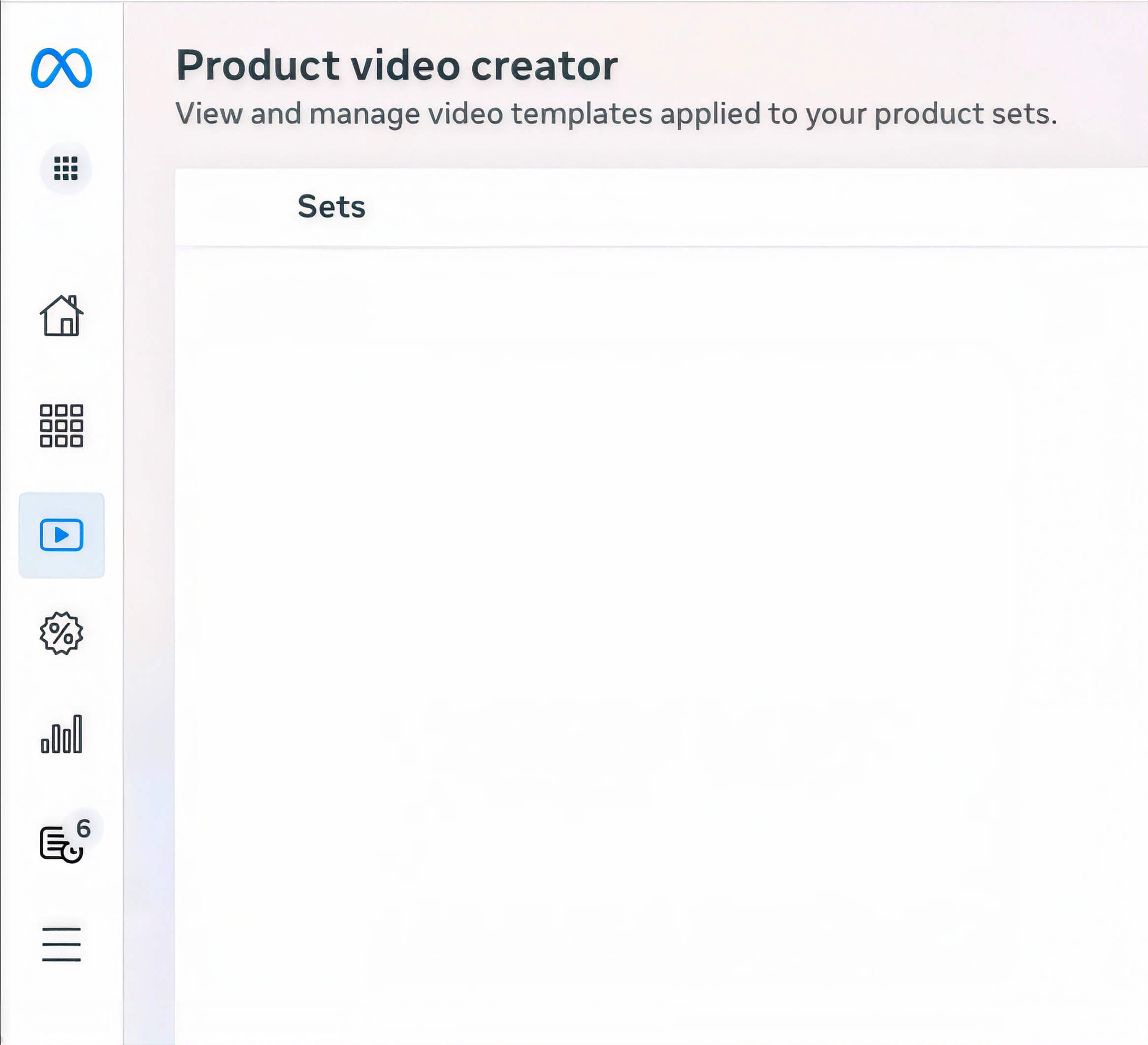
Open Commerce Manager and select your catalog from the dropdown. In the left menu, look for Product video creator. The icon is a play button. It sits in the main menu, not behind a settings page, so if your account has it you will see it in a second.
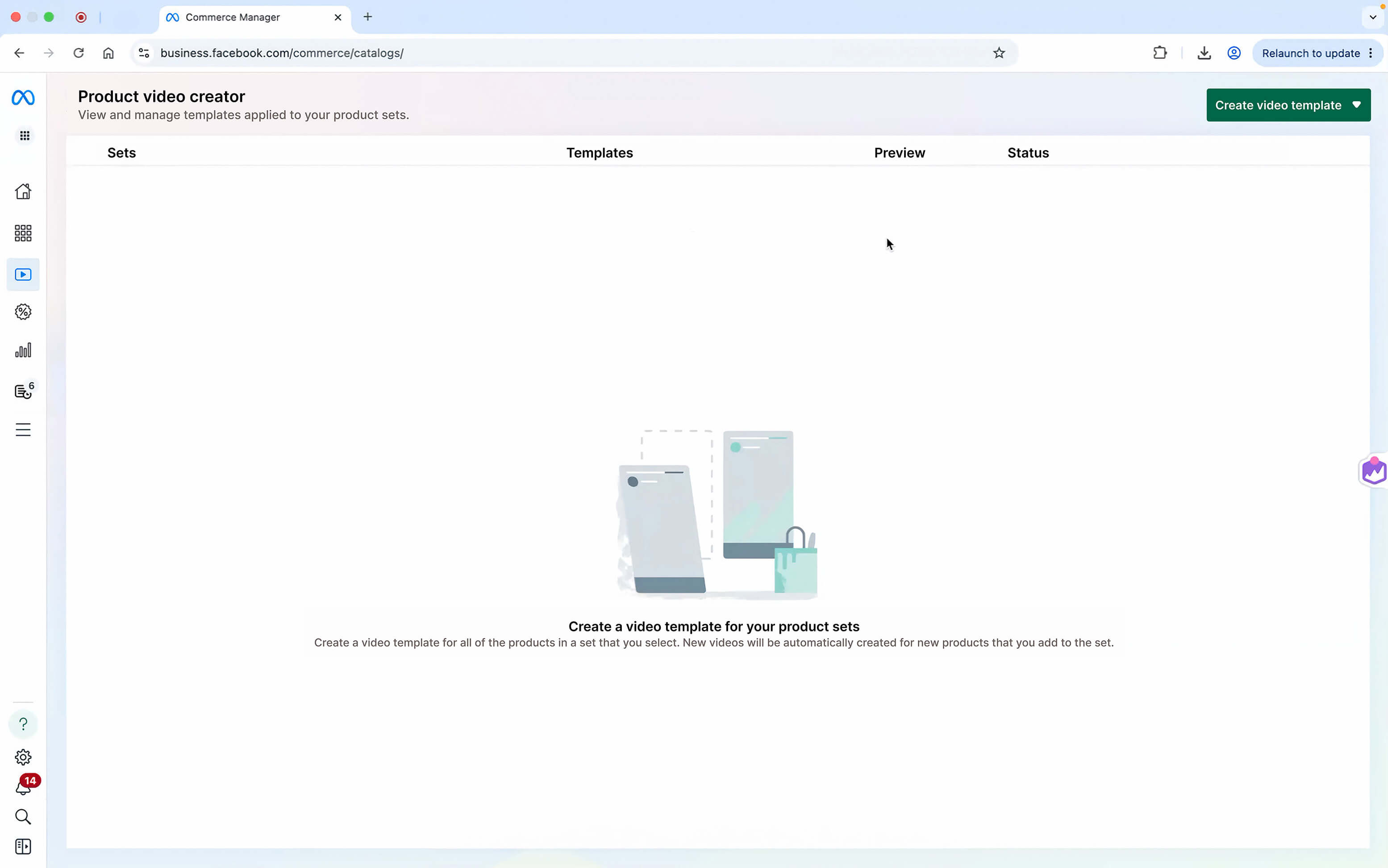
Click it and you land on the overview. This is your control panel: every product set that has a template, a preview of the template, and a status column for the videos.
If the menu item isn't there, your account hasn't been enabled. Meta is rolling this out to selected advertisers, and the way in is your Meta rep. In the meantime, everything from Step 7 onward, and everything in the rest of this guide, applies to videos you bring through your data source too.
Step 2: Choose between a product set template and a catalog-wide template
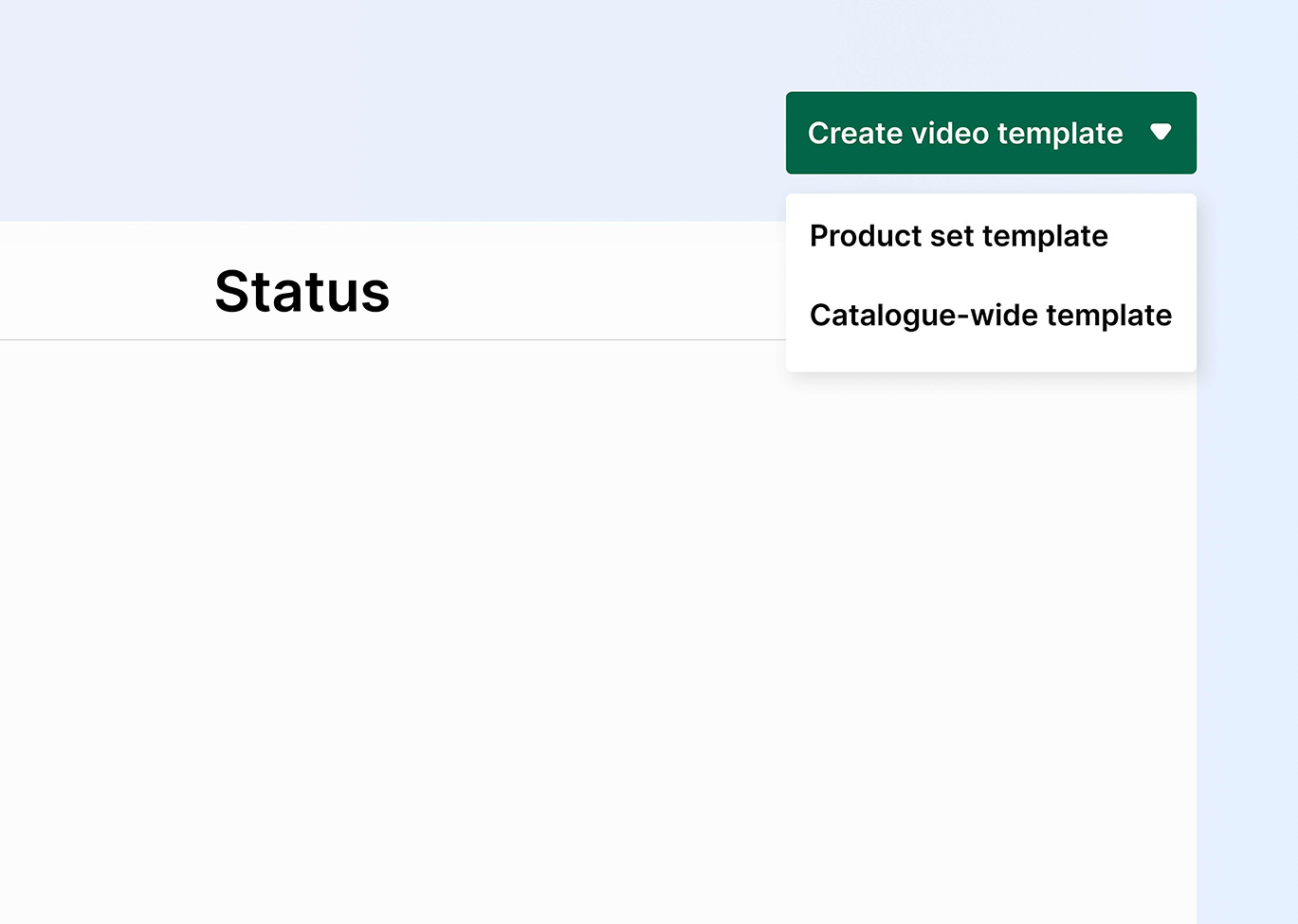
Click Create video template in the top right. Meta asks whether the template should apply to a product set or to the whole catalog.
Don't go catalog-wide on your first template. Start with a product set of your 50 to 100 best sellers, picked from how they already perform in your image Catalog Ads, with several images per product and everything in stock. Big enough to read the results. Small enough to preview every product before you publish.
Name the template for what it is and which set it serves. "Bestsellers - prospecting" beats "Video template 2" once you have five of them.
Step 3: Get to know the video template editor
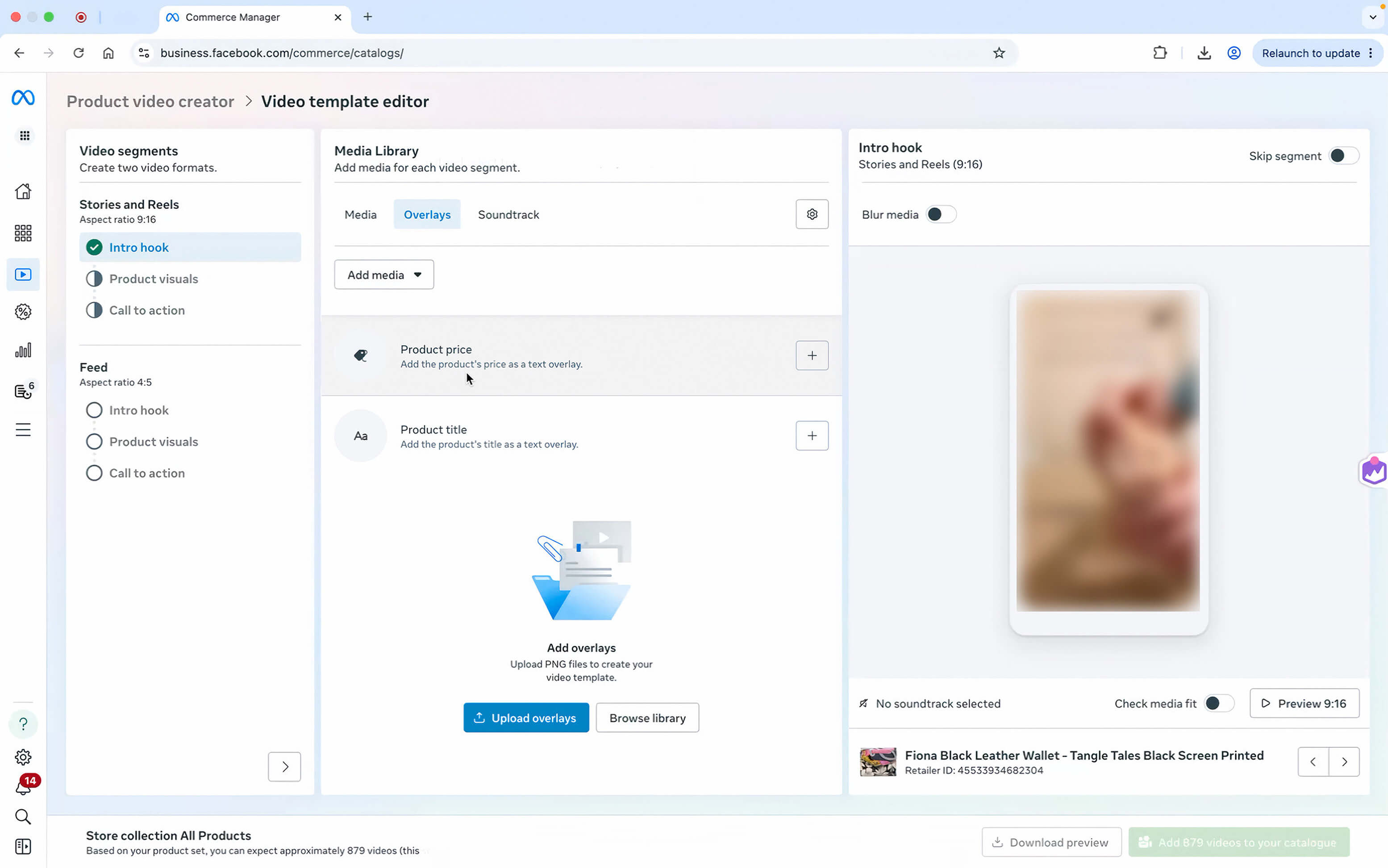
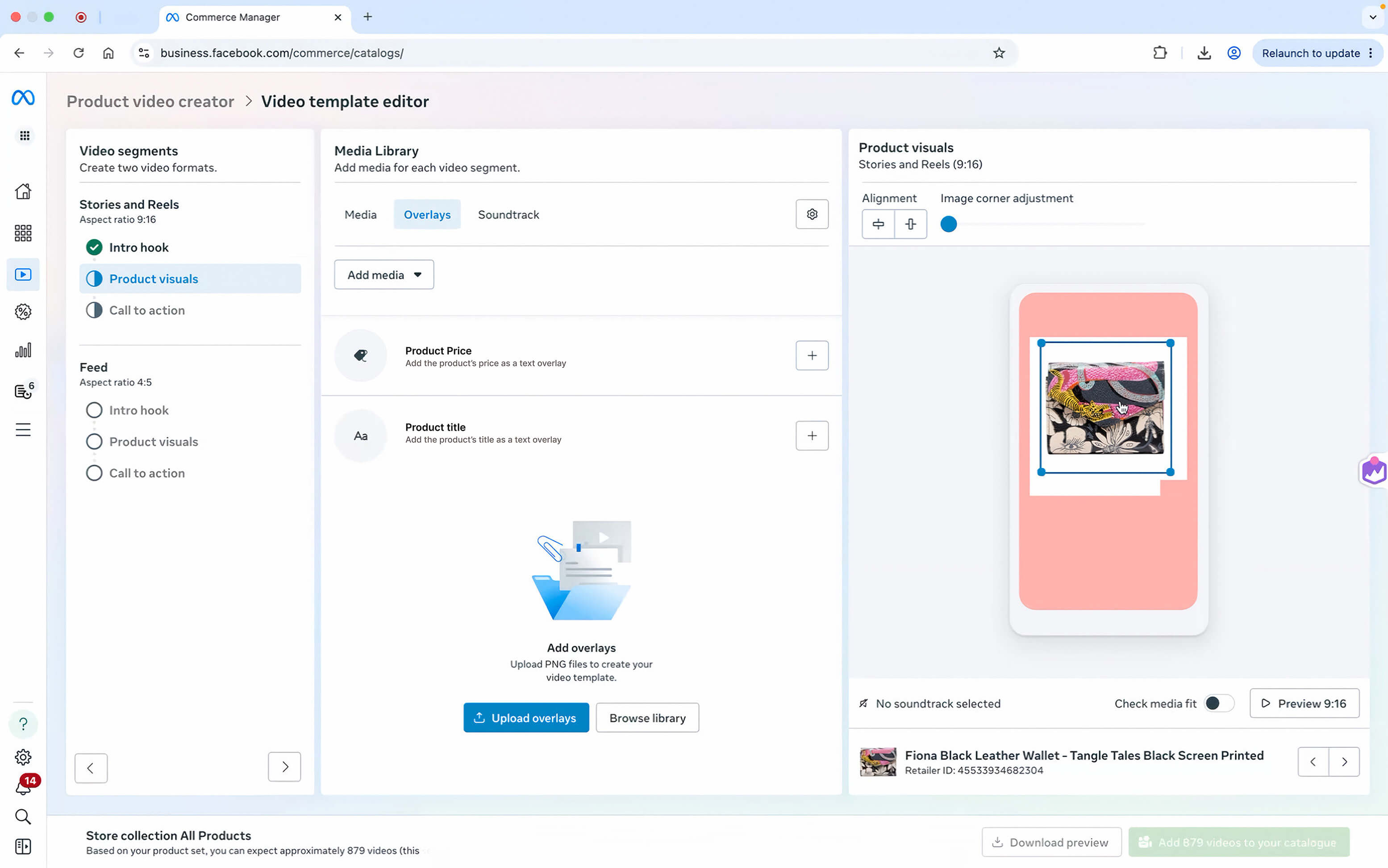
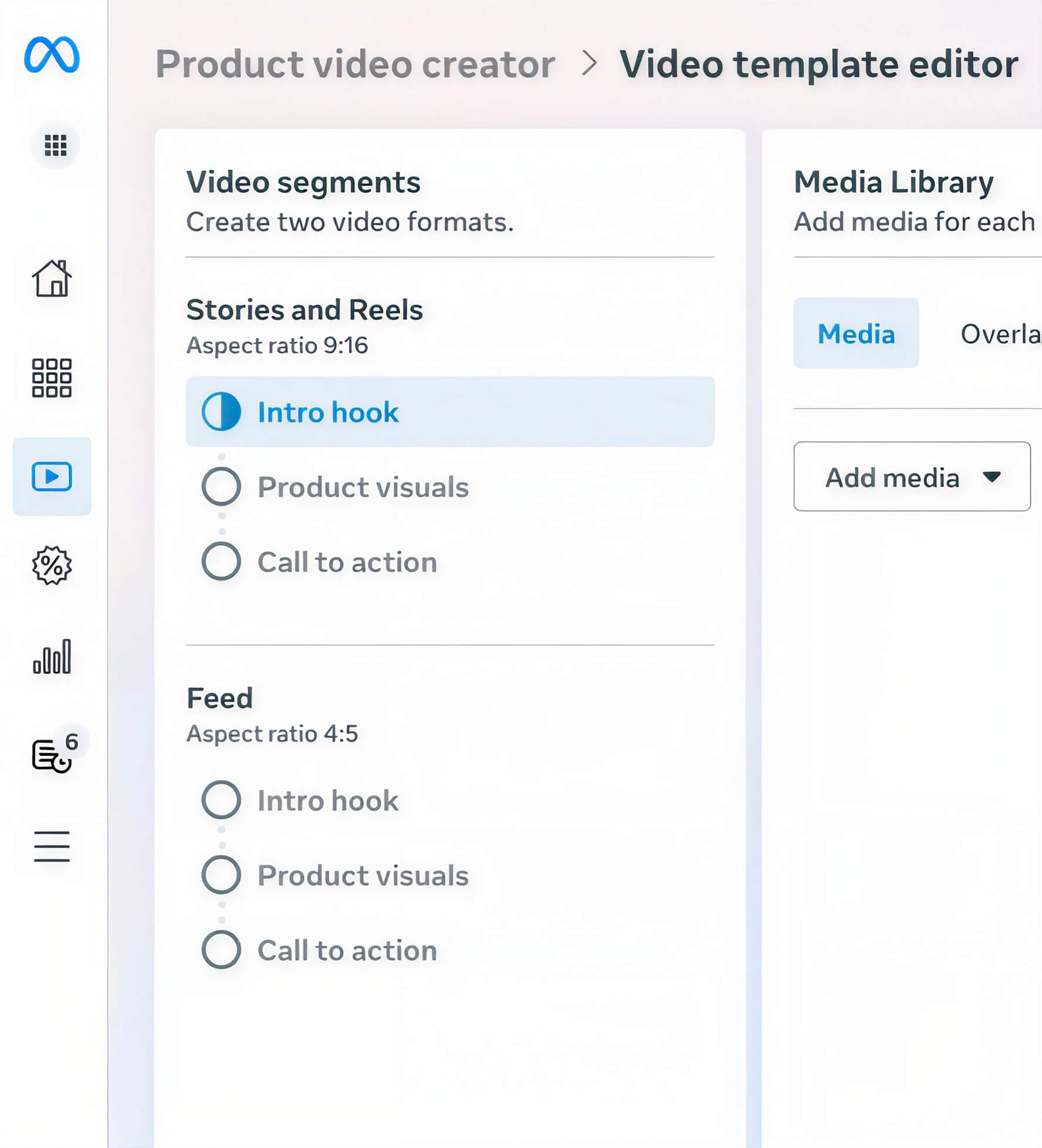
The editor is built around the segments. They sit on the left. The canvas is in the middle, a small preview of the current segment on the right, and at the bottom you'll find the product set selector, a Download preview button, and the green button in the bottom right that adds the finished videos to your catalog.
You'll also see two formats to build: Reels, which is 9:16, and Feed, which is 4:5. You need both before Meta lets you publish. There is no 1:1, and we'll explain why in Step 5.
One honest note from our first session: the editor is confusing the first time, because it asks you to upload media before it shows you anything. Once you know the recipe, it makes sense. Here it is.
Step 4: Build the three segments
Every video the tool makes has the same shape: an intro hook, the product visuals, and a call to action. Three segments, in that order, always.
You can skip the intro. You can skip the call to action. The product visuals stay.
That structure isn't random. It's the shape of a short video ad that works: stop the skip, show the product, nudge the action. Meta has turned it into a form.
Your job is to fill each part well, and we'll get to what "well" means further down. First, the mechanics.
Intro hook
Click the intro segment and the editor asks for media. Upload a clip or pick one from your media library. That clip becomes the background of the segment, and you cannot proceed without one.
Then two optional layers. A soundtrack, which is an audio file that plays over the segment. And overlays, which are the dynamic price, the dynamic product title, or a media file such as a logo PNG.
Keep the intro short. One to two seconds. What goes in it is the subject of a whole section below.
Product visuals
This is the segment that matters, and the one you can't remove.
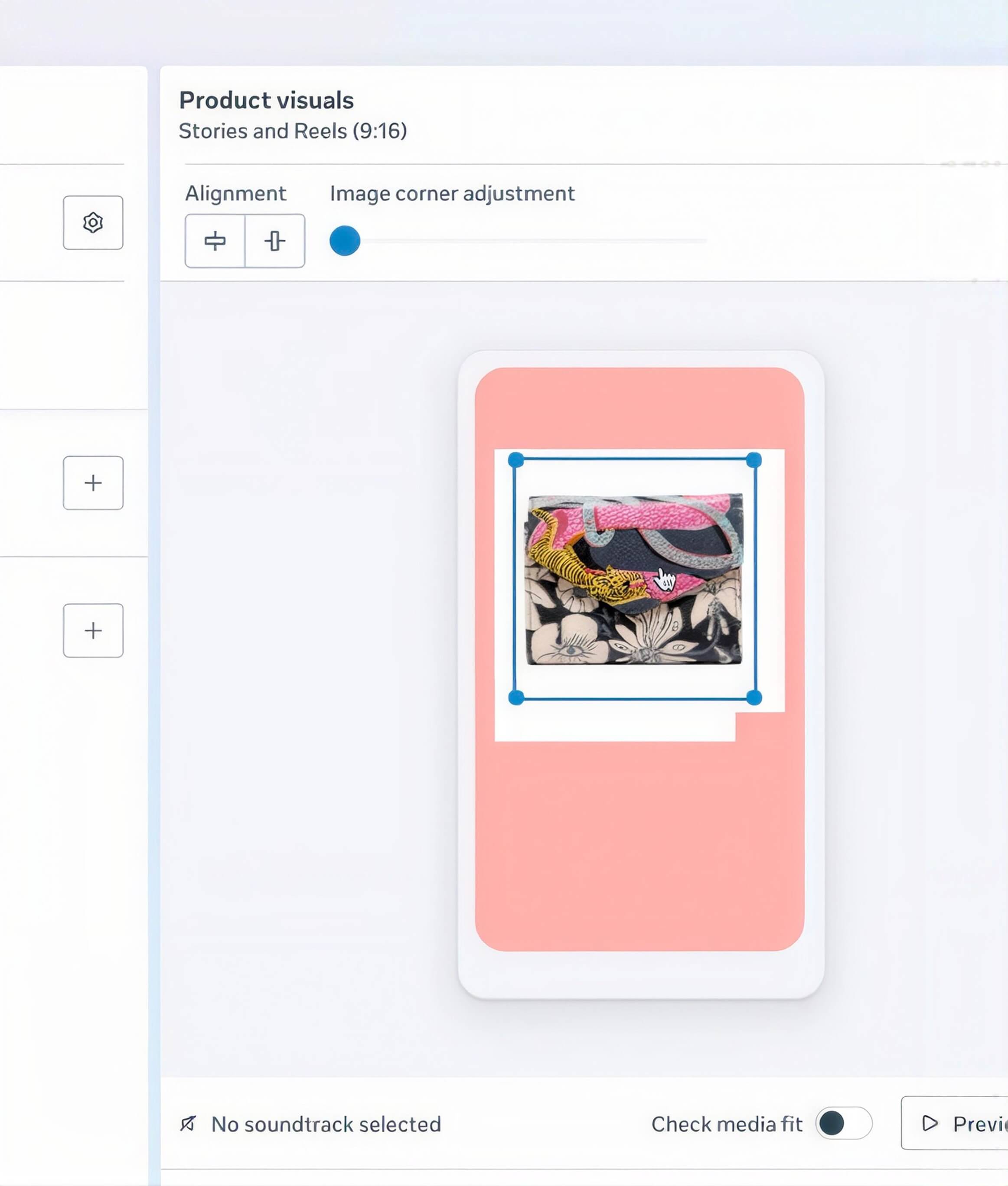
The product image is added automatically. You can move it, resize it, and round its corners with a slider. That's the full list of styling options. The image is your catalog image as it is, white background included, so treat it as a card sitting on top of your background clip rather than a cutout.
The background is a clip you upload, and it's required here too. If the clip is busy, use the blur option so the product card reads as a deliberate frame rather than a paste. Then add overlays: the price, the title, your logo.
If a product has additional images in your data source, the segment cycles through them: primary image first, then the additional images in order, dissolving from one to the next. So one template quietly produces a slideshow for every product that has more than one photo.
A footnote for the tinkerers. Behind the cog icon on the overlays tab you'll find advanced settings: how long each image holds before dissolving, how long the dissolve takes, manual ordering of up to four images, and, if your data source tags images, the option to use only tagged images or skip them. The one tactical use worth your time: put the image that answers the buyer's question first (on-model, in-room, in-hand), and keep size charts and infographics out.
Call to action
Same tools as the intro: a required background clip, an optional soundtrack, optional overlays. This is the last thing the viewer sees, so end on the brand and say one thing.
There is no text layer anywhere in this tool. If you want the words "Shop now" or "Free delivery" on screen, they need to be in the clip itself or in a PNG you upload as an overlay.
Overlays, fonts and safe zones
Overlays are the same in every segment. Three kinds: the product price, the product title, and a media file. The price and the title are dynamic, pulled from your catalog per product. The media file is static, the same for every product, which makes it your logo and your badges.
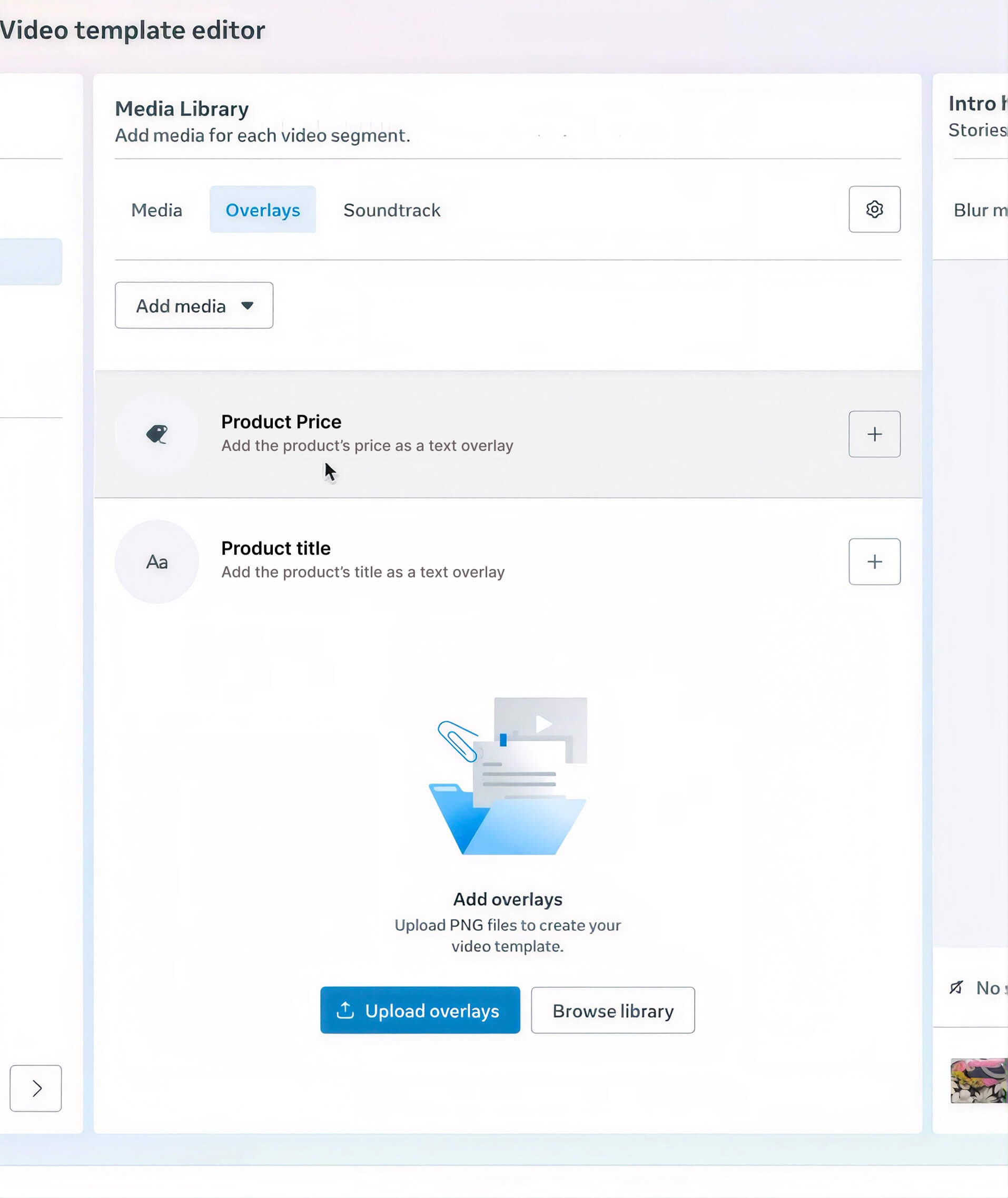
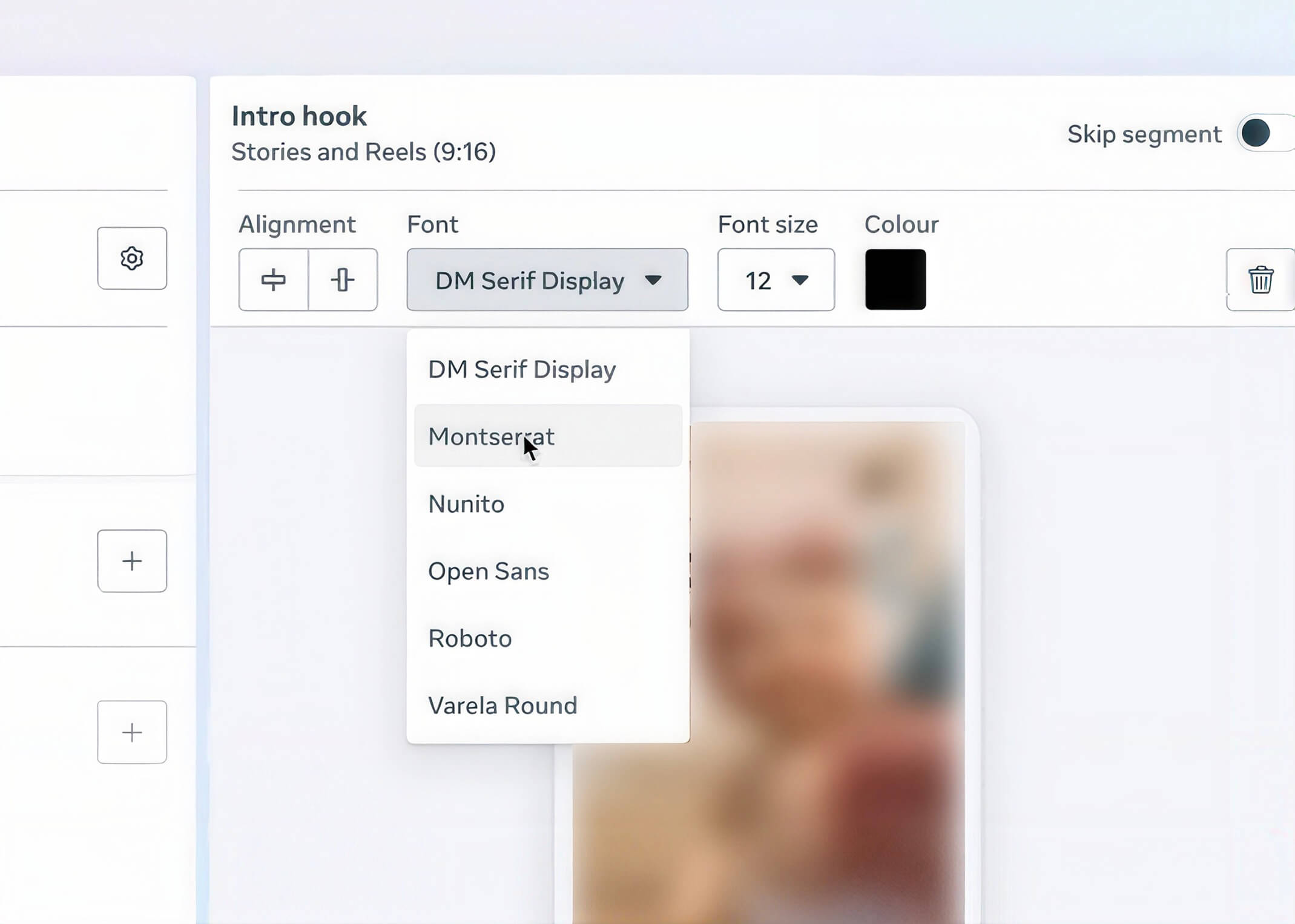
Text overlays can be moved, resized and recolored. The font is one of six: DM Serif Display (Meta's default), Montserrat, Nunito, Open Sans, Roboto and Varela Round. Pick the closest match to your brand font and move on. There is no way to upload your own.
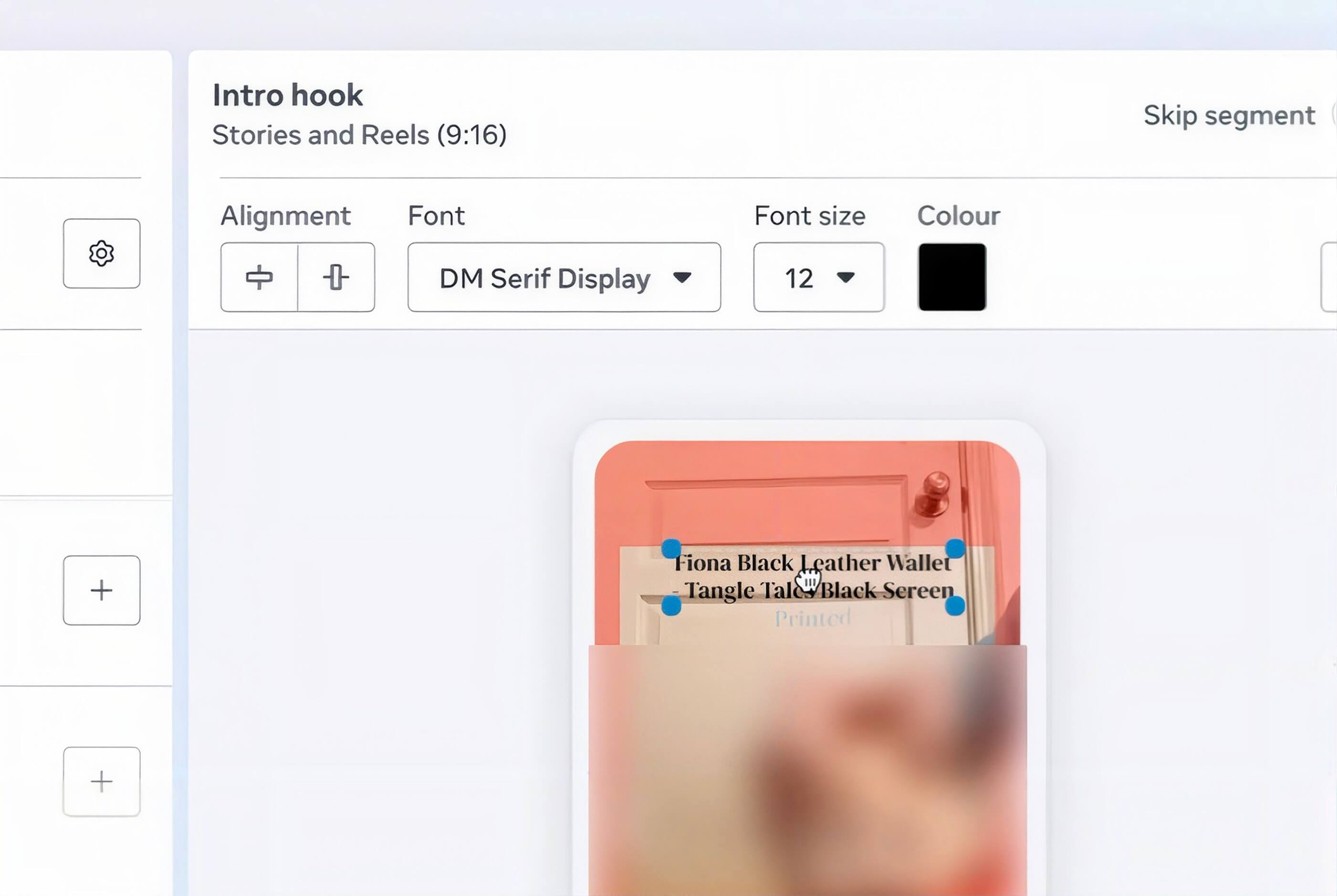
One thing the editor does very well: when you drag an overlay, a safe-zone guide appears on the preview, showing where the Reels and Stories interface will cover your design. Keep the price and the logo inside it. It's a small feature that saves a lot of ugly ads.
Step 5: Build the 4:5 version
Switch to the Feed tab and build the whole thing again for 4:5. The tool does not copy it across for you.
Why exactly these two formats, and no 1:1? Because that is how video Catalog Ads actually serve. Feed prefers 4:5. Stories and Reels are 9:16. A 9:16 video pushed into Feed gets padded or center-cropped, and a 4:5 pushed into Reels leaves half the screen empty.
Meta's own placement guidance for product videos lists 1:1 only as a fallback for desktop Feed, so the tool skips it. A video Catalog Ad will never show up as a square. The tool simply builds that in.
Don't mentally crop the 9:16 down. Reposition. The 4:5 has tighter safe zones and a different center of gravity, so the price that sat low in the vertical version may need to move up, and the logo may need to shrink.
Step 6: Preview with real products, then add the videos to your catalog
Use the product selector to preview several products, not just the photogenic one. Long titles, products with one image, products with six, low-contrast packshots. The template has to survive all of them.
Rendering is slow. Expect to wait for each preview. Download preview lets you pull a file out to share with a colleague or a client.
When you're happy with both formats, click the button in the bottom right to add the videos to your catalog. Meta renders a video for every product in the set and attaches it. From now on, any new product that enters the set gets a video too, without you touching the template.

Step 7: Turn the videos on in Ads Manager
Having videos in the catalog does nothing until an ad is set up to use them. Here's the setup.
At the ad level, set Creative source to Catalog and the format to Single image or video. Not carousel. Video Catalog Ads do not serve in carousels, so a carousel ad will keep showing your images no matter how many videos the catalog holds. Make sure the ad set uses the product set you built the template for.
Then open Advantage+ creative and check that Dynamic Media is on. Dynamic Media is the switch that lets Meta choose between the image and the video of each product per person. With it on, Meta will show the video to people it thinks are likelier to act on video, and the image to everyone else.
If you want video to run wherever it can, click Customize under the preview and tick Always show videos when available (older accounts may still see this as "Show videos when available"). Meta then serves the video everywhere a video is eligible and falls back to the image only when it has to. You'll also see Automatic video cropping, which crops your video to placements you didn't build for. With both 9:16 and 4:5 in place you won't need it.
Check the ad preview across placements before you publish. If the video is attached correctly, you'll see it there. If you don't, check the product set and the format.
This works in manual Advantage+ catalog campaigns, in Advantage+ Sales campaigns and in Advantage+ App campaigns.
Managing your templates: sets, status and new products
Back on the overview page, every product set with a template is listed with its status. One template per set. To change the design for a set, edit its template; to give a new set videos, create a new one.
The part that makes this a system rather than a one-off: Meta keeps generating videos for products that enter a set. Build the template once, and the catalog stays covered as products come and go.
Getting your videos to show, and testing them without fooling yourself
Here's the part that catches most first-timers. The videos render, the status says done, and the ads keep showing images.
Four reasons your videos exist but your ads don't show them
Carousel. Video Catalog Ads do not serve in carousel. If your best-performing ads are carousels, your videos will never appear in them. You need a single image or video ad.
Dynamic Media's default. With Dynamic Media on and nothing else changed, Meta chooses image or video per person. Right for running, wrong for learning. If half your impressions quietly stay images, you will never know what video did. Tick Always show videos when available while you test.
Product set mismatch. The template lives on set A. The ad runs on set B. No videos. Check the set at the ad set level against the set on the overview page.
The preview is the only proof. The status column tells you the videos exist. The ad preview tells you they are being served. Trust the second one.
How to test video Catalog Ads cleanly
There are two different questions hiding in "does video work for us", and they need two different setups. Decide which one you're asking.
Does video beat my images for the same money? Duplicate the ad set. Same product set, same budget, same audience settings. One side runs images only. The other has Always show videos when available ticked.
Run both for at least two weeks and don't conclude on fewer than 30 results per side. Our A/B testing guide walks through the exact setup.
Does adding video on top grow total results? Leave your image ads exactly as they are. Add a video ad set beside them with a meaningful share of budget, Dynamic Media on. This is the question most advertisers are actually asking, and it's the one Meta's brand studies answer with incremental numbers.
Either way, three rules. Test on a product set where every product has a video, so delivery isn't diluted by products that fall back to images. Keep the set large enough to read (the 50 to 100 best sellers from Step 2). And judge on cost per purchase and Return on Ad Spend, not on view metrics, which video wins by definition.
And whatever the test says: don't replace. Video Catalog Ads are a layer on top of your image Catalog Ads, not a swap for them. The two together give the delivery system two creative types to match to two kinds of people.
One reassurance to close. Adding videos to the catalog is not an ad edit, so it does not reset the learning phase of your running ads. Toggling Always show videos on a live ad is an edit, so do it in a new ad set rather than on your best performer.
What to put in your video template: choices backed by data and theory
Knowing how to build the template is the easy half. The recipe is fixed, so the real decisions are what goes in each segment, and for how long. And the recipe, it turns out, is a clock.
Read the three segments as a clock, not a form
A viewer makes three decisions about your video, and makes them fast. First, whether to stop at all. That takes about two seconds. Then whether what they stopped for is interesting, which takes another second or so. Then whether to do anything about it, and by six seconds most people have decided and moved on.
The three segments map onto those decisions exactly. The intro hook is the stop decision. The product visuals are the interest decision. The call to action is the nudge before attention runs out.
So the time budget writes itself: about two seconds for the hook, three to four for the product, one to two for the call to action. Under ten seconds in total, comfortably inside the 6 to 12 seconds we recommend for any video Catalog Ad.
The most common first-timer mistake is to invert that budget. A long branded intro, a slow slideshow, a call to action nobody reaches. The clock is the fix.
The intro hook: brand early, without a brand card
Every video is seen by the most people at the very start. Every second after that, some of them leave. So whatever you want everyone to see, including the people who skip after a second, goes first.
That's an argument for branding early. It is not an argument for a logo animation, which is the least interesting thing you can show a stranger. In this tool, brand recognition has three sources that need no intro card at all: the color of the clip behind everything, the product shot people already know you for, and the logo PNG sitting in the corner while something more interesting moves.
And something should move. A person. The product in use. A fast cut.
The uploaded clip is the only place in this tool where a human being can appear, and a human is the fastest way to make a Catalog Ad look like content. A rough creator clip shot on a phone works fine here, often better than a polished brand film.
If the viewer already knows you, skip the intro entirely and let the product be the hook. More on that in the funnel section below.
The product segment: the product is the star, and it has to stay the star
Keep the product on screen for most of the video. This is where the image controls earn their keep.
Two or three images at roughly two seconds each, ordered so the first one answers the buyer's question. On the model for fashion, in the room for furniture, in the hand for gadgets. Then a second angle or a variation. Use tag filtering to keep size charts and infographics out, because nothing kills a video like a table.
Sequence the information: product first, then price, then title. Progressive disclosure, in the language of design theory. The viewer isn't overwhelmed, and each element lands on its own.
The two dynamic overlays you have are worth using. In image Catalog Ads, showing the price lifts Return on Ad Spend by 31 to 54% depending on funnel stage, and the same logic holds in motion: the price filters out window shoppers before the click. The title matters most when people already know what they're looking for.
Keep the logo PNG in the corner throughout; in retargeting it pays a further 14%. All numbers from the big Catalog Ads design cheat sheet.
Be honest with yourself about one thing. The product images are your catalog's own, so your photography quality is now your video quality.
And the white card sitting over a busy clip is unavoidable in this tool. Blur the clip. The card then reads as a deliberate frame rather than a paste.
The call to action: one product, one click, one sentence
Video Catalog Ads show one product per video, and that turns out to be a feature. There's no swiping past the thing someone wanted. What they watched is what they click.
So the call to action segment should say one thing. The offer, "Shop now", free delivery, pick one. End on the brand. People judge an experience by its peak and its ending, and this is the ending.
With no text layer, that one sentence has to live in the clip or in a PNG you overlay. One to two seconds. It's a nudge, not a chapter.
Make it look different from your image Catalog Ads
Most image Catalog Ads are bare product images on white. We've said it for years. If the video version is the same bare product with a clip stapled to the front, you've handed the delivery system two copies of one creative, and the second copy adds very little.
Video earns its place by being visibly different. People, movement, context, contrast. A background clip in vivid brand color. A fast cut in the intro. A soundtrack that rewards sound-on without carrying the message.
The delivery system reaches new people with distinct creatives, not with copies, and Andromeda treats a video and an image as two separate entities to begin with.
A polished brand film and a phone-shot creator clip are two different hooks, not a good one and a cheap one. Build a template with each and let the numbers tell you which your audience prefers.
Sound: design for silence, reward sound-on
Feed autoplays muted. Stories and Reels mostly play with sound. Your video has to work in both states.
Design for silence first. In this tool that means the product, the price and the logo do all the talking, because there is no text layer to add a caption. If the message needs audio to land, it won't land in Feed.
Then add sound as a bonus. A soundtrack per segment, so the sound-on viewer in Reels gets more, not different.
Prospecting vs. retargeting: two templates, two sets
The same template should not run across the whole funnel, because the viewer is in two different situations.
In prospecting, they've never met you. Intro on, brand-led, a person in the clip, price small or absent, product images that show the product in context. Trust first.
In retargeting, they know the product and are deciding. Skip the intro, open on the product, price large, logo present. Price lifts performance by 54% in bottom-funnel image Catalog Ads, against 31% in prospecting, and there's no reason to think motion changes the direction of that.
Two product sets, two templates. We've covered both situations in depth: Catalog Ads in top-funnel ads and prospecting and Catalog Ads in bottom-funnel ads and retargeting.
Two formats, two designs
9:16 is full-screen, sound-on and thumb-zone aware, and it's where video Catalog Ads look their best. 4:5 is Feed: silent, tighter safe zones, and still where a large share of Catalog Ad impressions land. Each has its own grammar, so reposition rather than crop.
If you're bringing your own videos through the data source and can only produce one size, make it 4:5 and turn on Automatic video cropping. Feed pads or center-crops a 9:16, while Stories and Reels accept a 4:5 without complaint.
Use product-set templates as your version of Design Rules
One template per set is the tool's version of variants, so use it like one.
A sale set with a sale intro and a sale call to action. A bestseller set with a bestseller badge PNG. Category sets with matching background clips, one look for running shoes, another for jackets. In our Andromeda study, top performers were 38% more likely to run five or more design variants than bottom performers, because every distinct design gives the delivery system another option to match with the right person.
One caveat: we don't yet know which template wins when a product sits in two sets that both have one. Keep your sets exclusive until you do.
Example: a strong beginner video template, segment by segment
Let's put it together, with the clock alongside:
- Intro hook, 0 to 2 seconds: a clip of a person with your product category (a creator, a model, a hand), brand color in frame, logo PNG top left, no other overlay.
- Product visuals, 2 to 6 seconds: a blurred brand-color loop as the background; the product image large and centered with slightly rounded corners; two images at two seconds each, on-model or in-use first; price bottom center in Montserrat (or the closest match to your brand font), the title above it in a smaller size; logo PNG stays in the corner.
- Call to action, 6 to 7.5 seconds: the same clip, with "Shop now" and the offer baked into it, logo PNG.
Seven and a half seconds. Build it once for Reels, once for Feed, preview ten products, publish.
What Meta's video templates can't do
We've spent this whole guide showing you how to use the Product video creator, and we meant every word: if your Catalog Ads are still images today and the play icon is in your menu, build a template this week.
But we'd be lying if we said it's the end of the road. Here's an honest look at where it stops.
What the Product video creator does well
Credit where it's due. It's free. It needs no video production. It covers new products without being asked.
It forces the two formats that matter and shows you the safe zones. And the image controls, the hold times, the manual ordering, the tag filtering, are more thoughtful than the rest of the tool.
For an advertiser who has never run a video Catalog Ad, this is the best on-ramp Meta has ever offered. For a smaller brand with good packshots and one decent brand clip, it may be enough for a while.
A recipe, not an editor
Three segments, fixed order, two of them skippable, nothing else. No timeline. No custom segments.
And no animation. The price doesn't slide in. The logo doesn't fade. Nothing reveals in sequence.
Everything in a segment appears at once and sits there until the segment ends. The only things that move are your uploaded clip and the dissolve between product images. That's why the results feel like a slideshow with a clip stapled to the front.
Think about what can move in a product video. The product: a zoom, a turn, a slide-in. The brand: a logo or a color building on screen. The offer: a price or a discount arriving with emphasis. Or the product doing its job.
The template tool can borrow the first of those from a clip you upload. The rest are exactly what makes a video Catalog Ad look designed rather than assembled, and none of them is possible here.
Two fields and six fonts
Price and title. That's the entire list of product data you can put in the video.
No original price, so no anchoring the sale price against it. No discount percentage. No category. No custom labels. No ratings. No brand name for a multi-brand retailer. No stock status.
In image Catalog Ads, those are the elements that pay: category lifts Return on Ad Spend by 64%, specific savings by 57%, custom labels by 37%, social proof by 31%. The video tool can show none of them.
There's no static text layer at all, so even a plain "Free shipping" has to be baked into a PNG. And the six fonts are a step down from the 26 in Meta's own image Templates. On-brand isn't within reach here. On-brand-ish is the ceiling.
The product stays on white
No background removal. The product image is a rectangle with rounded corners sitting on top of your clip, and that's the only styling you get.
It's the opposite of Catalog Ads that look like your normal ads. You can tell it's a Catalog Ad from across the room. It also undercuts the advice above about looking different from your image ads: the middle of every video is the same product on white your image Catalog Ads already show, so all the differentiation has to come from the two clips at either end.
No rules, no data, no everyone
A template is static logic: one design for every product in the set, always. Some of those products are on sale and some aren't. Some are bestsellers. Some are new. The template treats them identically.
The product-set workaround above helps, and it's manual, and it doesn't scale past a handful of sets.
There's no performance data per template, so you can't see which design choices drive results. Rendering is slow. Every template is built twice. It serves in one format only: no carousel, no collection, no 1:1.
And most advertisers can't open it today.
When to move to a dedicated video tool
Think of video Catalog Ads in three stages: test, template, tailor.
Test. A small set of best sellers, videos from whatever you have (the Product video creator, or clips you already own through the data source), two weeks, a clean read. The only question is whether video moves your numbers.
Template. One design applied to every product, so the whole catalog gets video without production. This is where Meta's tool lives, and where it stops.
Tailor. Per-product video with real motion, your brand, all your product data and conditional design, generated at catalog scale. This is the stage the best advertisers are already at.
Our rule of thumb is the same one we gave for image templates: around $5,000 a month in Catalog Ad spend, or the moment your test shows video works and the design becomes the bottleneck. Whichever comes first.
At that point, Confect's video editor gives you what the recipe can't. A real timeline, where any layer animates in and out, with control over duration, delay, direction, opacity, scale, rotation and speed curve. The product, the brand and the offer can all move, on your terms.
Any product field in the video, not two. Product images with the background removed. Your fonts. Design Rules on the video variant, so the sale products get the sale video automatically. Product Assets, so brand logos and rating stars appear on the right products. And performance tracking per design, so you can see what works and keep improving.
Then there's the part that changes the workload entirely: an AI agent that builds the video for you. Describe what you want ("open on the product, bring the price in from the right, add a subtle zoom, end on the logo"), and it creates the segments, the layers and the effects. You edit from there instead of starting from nothing.
This is what the brands and agencies already running video Catalog Ads are doing. Sparfönster and BeSocial took the image design they already knew was working and extended it into a video Catalog Ad, in story format, with the same elements carried over. Incubeta built video Catalog Ads for Nobody's Child's Black Friday, among the first in the UK to run the format. BeSocial did the same for Baum und Pferdgarten from videos the brand already had in its data source, optimized for Stories.
So the ladder looks like this: still images, then Meta's video templates, then a dedicated video editor. Just don't stand still on the first rung. That one costs you money every single day.
From Product Level Video to video templates: how video Catalog Ads evolved
To see what the Product video creator actually is, it helps to see what came before.
In 2015, Meta launched Dynamic Product Ads: ads that pulled products from a catalog and showed the right one to the right person. The targeting was brilliant. The creative was a still image, and there was no way to change it.
In 2023, Meta started a beta called Product Level Video. You could add a video URL per product to your data source, up to 30,000 products, and Meta would serve it. You brought the video. Meta brought the delivery.
Almost nobody had videos for their products, so almost nobody used it.
In February 2024, Confect published its first guide to making video Catalog Ads from a template: one design applied to every product, with animation and product data built in, and the videos delivered into the catalog for you.
In May 2024, Meta launched the format to every advertiser as Catalog Product Video, with Dynamic Media choosing image or video per person.
In October 2025, Andromeda finished rolling out. Creative became the targeting, and video and image started competing as separate entities.
And in 2026, Meta shipped two native design tools in a row: Templates for image Catalog Ads in Ads Manager, and now the Product video creator in Commerce Manager. For the first time, Meta itself makes the video.
Every step has moved in one direction: from "bring your own video" to "we'll make it for you". The most data-rich ad format on the platform was never going to stay still forever, and now the platform has said so in product form.
Meta's video templates: frequently asked questions
Is Meta's Product video creator free?
Yes. There's no cost beyond the media you spend. Access is the constraint, not price: the tool is currently visible only to selected advertisers.
Who has access, and how do I get it?
Open Commerce Manager, select your catalog and look for Product video creator in the left menu. If it's not there, ask your Meta rep. In the meantime, you can bring your own videos through your data source, or use a dedicated tool, and everything in this guide about how the videos serve applies just the same.
Do I need my own product videos?
No. Product images plus one or two clips for the intro, the product background and the call to action are enough, and the tool builds the rest. But if you do have product videos, this is where they shine: a real clip of the product in use as the intro or as the background turns a slideshow into an ad.
How long should a video Catalog Ad be?
Under ten seconds. Hook in the first two, product for the middle, call to action by six. The tool's three segments are that clock, and the 6 to 12 second range we recommend for any video Catalog Ad is the outer limit.
Which aspect ratios does it support?
9:16 for Reels and Stories and 4:5 for Feed, and you must build both. There is no 1:1, because a video Catalog Ad never serves as a square. If you bring your own videos and can only make one size, make it 4:5 and turn on Automatic video cropping.
Do video Catalog Ads work in carousel or collection ads?
No. Video Catalog Ads serve in the single image or video format only, one product per video. Carousel ads keep showing your images. The upside is that every click lands on exactly the product the viewer watched.
Should video Catalog Ads replace my image Catalog Ads?
No. Run both. Dynamic Media picks image or video per person, and the two creative types reach different people. Video is a layer on top of your image Catalog Ads, not a swap.
Which product information can I show in the video?
Price and title. Those are the only dynamic fields. There's no discount, category, custom label or rating, and no static text layer, so any other words need to be in your clip or in a PNG overlay.
How are Meta's video templates different from a dedicated video tool?
Meta's tool is a recipe: three fixed segments, two data fields, six fonts, no animation, no Design Rules, no performance data. A dedicated tool like Confect is an editor: a timeline where any layer animates, any product field, any font, background removal, Design Rules on the video, Product Assets, performance insight per design, and an AI agent that builds the video from a description. Meta's tool is the right place to find out whether video works for you. Dedicated tools are how top performers run it.
Start making video Catalog Ads today
Here's the uncomfortable truth this tool exposes: Meta has decided your products should move, and it has removed the production excuse.
If the play icon is in your Commerce Manager, build one template on your best sellers this week. Run it beside your image ads for two weeks. Read the numbers. If it isn't there, ask for it, or bring your own videos through the data source.
Test, template, tailor. The only wrong move is staying still.
For a weekly look at what great Catalog Ad design looks like in the wild, video included, see our Catalog Ad of the Week.